Show Record
The Show Record is the history of participations and results in bird shows. If you enter your birds in competitions, here you can keep a complete record of everything they have achieved. You open it from the side menu, and each bird also has its own Show Record section in its record, where you add and correct its results without leaving it.
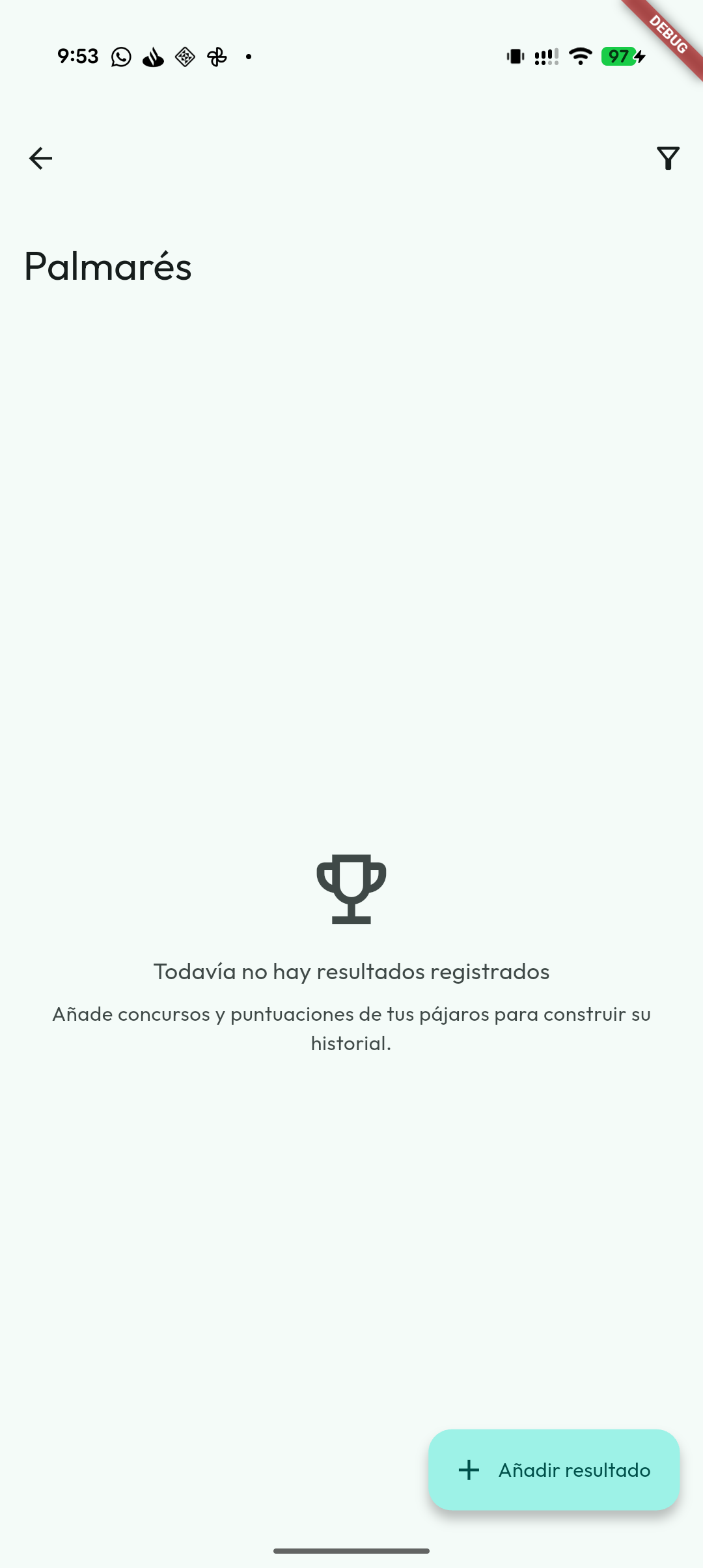
Recording a result
- Tap the “Add result” button at the bottom.
- Type the name of the contest or show and choose the date.
- Choose the modality: individual or team. For a team you can also enter the team name (optional), its score and its place.
- Add attachments if you want to keep judging sheets, certificates or photos of the result.
- Under Birds and scores, tick the bird that took part, or the team's birds (at least two).
- Enter each bird's individual score and place: 1st, 2nd, 3rd or no place. If you like, add a Note to each one: what the judge said, what to improve…
- Save.
Each bird in the list shows its species, its sex and its year (“Year 2024”) underneath: the ring year or, if there is none, the year of birth. That way you can tell the champion from two seasons ago apart from this year's chick even if they carry the same number and the ring does not show the year (if you have hidden it in Settings → Appearance → Ring display format). When you edit a result, the birds already taking part are listed first.
The result is linked to the bird and appears in the Show Record section of its record, so you can see each specimen's competitive history at a glance.
Always write the contest the same way. The cards in the list are formed by the contest name: capitals, accents and extra spaces do not matter, but “Regional Show Leeds” and “Leeds Regional Show” count as two different contests.
One contest, one card
The list groups results by contest: all the birds you recorded in the same contest appear together on a single card. Results with the same name and from the same year count as the same contest. It is the year and not the day so that a show lasting several days, or one you recorded on another day, is not split in two; two editions of the same contest, on the other hand, get separate cards.
- The header shows the contest name (the spelling you used most often), the date —or the date range, if there are several— and how many birds took part.
- Inside, the birds that made the podium (1st, 2nd and 3rd) come first, then the rest by score. Each bird shows its individual score, its place and, if it has one, its note; tapping it opens its record.
- Team results form a block of their own, with the team name, its score, its place and the score of each of its birds; the notes go below, each with the name of its bird.
- The pencil edits a result and the bin deletes the whole entry, with all its birds. With sync turned on, what you delete can be recovered from the Trash for 30 days (see Cloud sync).
- Add another bird opens the form with the contest and the date already filled in, so the new result lands on the same card.
- The attachments of each entry are shown below it; tap them to open them.
Results on the bird's record
In each bird's record, the Show Record section is always visible, even when the bird has no results yet. It lists each contest with its date, the modality, the individual score, the place and the note; the best individual score comes first, with the TOP label, and the rest go from newest to oldest.
From there you can:
- Add result: record an individual result for that bird with the contest, the date, the individual score and the place (no place, 1st, 2nd or 3rd), and a Note if you like. You do not have to pick the bird: it is the one whose record you are on.
- Reuse a contest you have already recorded: the list button next to the contest field (Choose a contest you've already recorded) opens Recorded contests and fills in the name and the date exactly as you saved them, so the result lands on the same card as the other birds in that contest. It appears once you have recorded at least one contest.
- Change a result: tap it to open Edit result. In an individual result you can change everything: contest, date, score, place and note. In a team result, only that bird's score, place and note can be changed from its record; the contest, the date and the team details are changed in the Show Record, where all the team's birds are visible.
- Remove from contest: removes that bird's result after asking you to confirm. If it was an individual result, that entry is deleted. In a team, the other birds keep theirs; but a team needs at least two birds, so if only one other bird would be left, the whole team entry is deleted, and the app warns you first.
The attachments of an entry are added and removed in the Show Record.
A prize on the wrong bird? If you see a result on a bird that never competed —for example, on this year's chick that carries the same number as a champion from another season—, open it from that chick's record and tap Remove from contest. Then go to the champion's record and add it with Add result, choosing the contest with Choose a contest you've already recorded.
Filtering the results
Use the filter icon to search results by modality, year, bird, sex, species, mutation, individual place or team place, or use the search box, which looks at the contest, the team, the ring, the species, the mutation and the notes. The bird filter also shows each bird's species and year. Filters pick results and then group them by contest, so a card only shows the birds that match. Very useful once you have a long history.
Attachments and the bird's record
Show Record attachments are saved with the participation and also appear linked in the record of each bird involved, in its Documentation section. That way you can open a judging sheet from the Show Record module or from the specimen's record.
What is this for? Your show record helps you spot which breeding lines produce the best show results, and it is a strong selling point if you sell specimens or work with other breeder associations.