Calendar
The Calendar gives you a monthly overview of all the important events in your aviary: expected hatchings, scheduled ringings, fertility checks, incubator milestones, medical treatments, recurring health plans and custom reminders. All at a single glance.
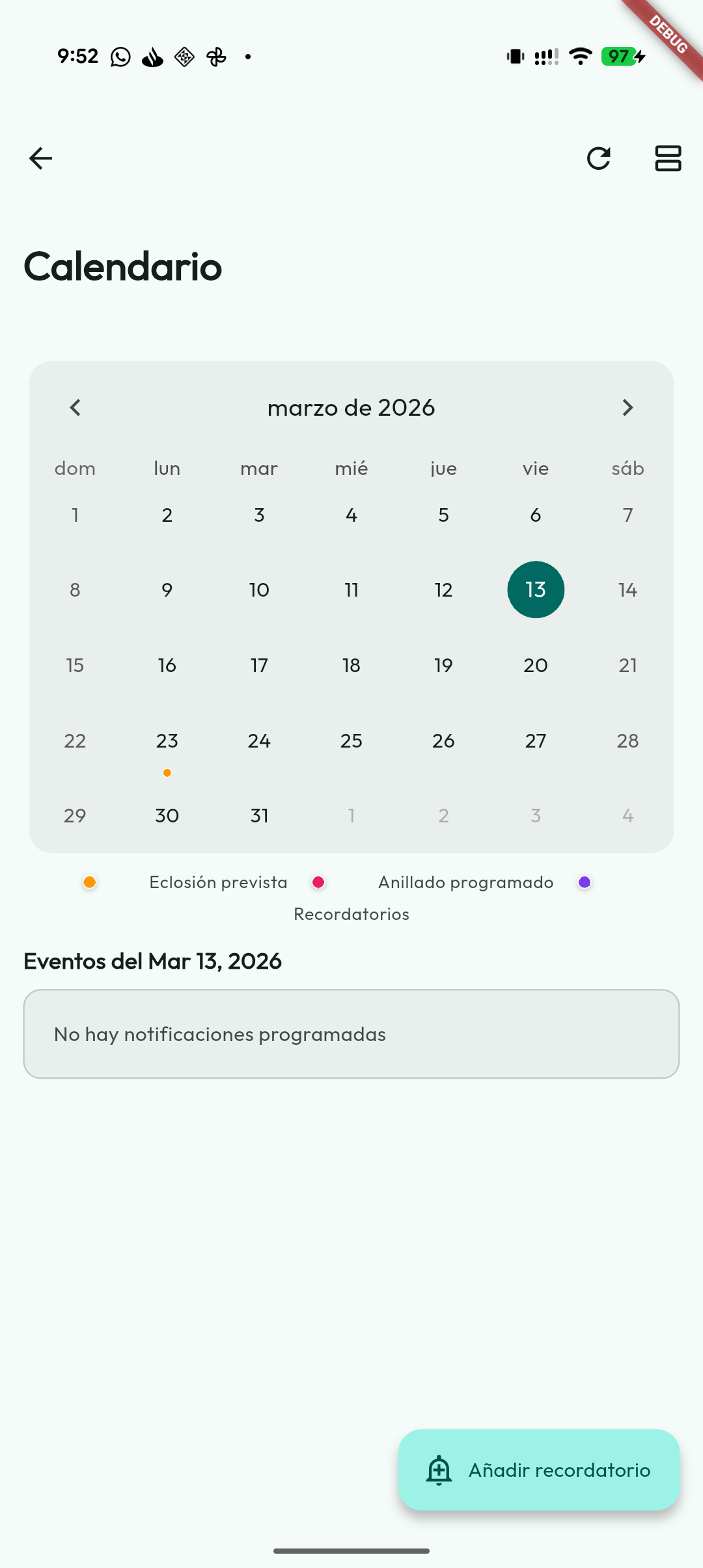
What is shown on the calendar?
Days marked with a coloured dot have an associated event:
- 🟠 Estimated hatching: chicks from a clutch under incubation are expected to hatch on that date.
- 🔴 Ringing scheduled: a chick will reach ringing age on that day.
- 🟢 Fertility reminder: a clutch reaches the recommended time for candling.
- 🟣 Reminders: a personal reminder you have created.
- 🔵 Treatments: a bird has a medical treatment on that day.
- 🟣 Scheduled treatments: there is a planned occurrence of a recurring health plan.
- Incubators: if the module is active, candlings, moves to the hatcher and estimated hatchings of eggs inside an incubator also appear.
- 🟤 Expiry: with the Inventory module active, the day a batch with stock expires appears on the calendar; tapping the event opens the product record.
- Feeding: with the Feeding module on, the days with news from your feeding plans, with the same lines as their daily alert. Tapping the event opens Due today.
With the Health module off under Settings → Modules, the calendar does not show treatments, scheduled treatments or Feeding days.
When you tap any day with events, you will see the details of what is happening that day. Below the calendar there is also a list of upcoming events so you can plan ahead without having to check each day manually.
Monthly view and list view
You can switch between:
- Monthly view: ideal for seeing at a glance which days have activity.
- List view: handy for reading all events sorted by date.
In the monthly view, selecting a day shows the block of events for that date below it, along with a list of nearby upcoming events.
The view you choose is remembered when you leave the calendar and travels with your account to your other devices.
Adding a reminder
You can create your own reminders for anything: treatments, vet visits, cage swaps, etc.
- Tap the "Add reminder" button at the bottom.
- Choose the date and write the text of the reminder.
- If you want, set up daily, weekly or monthly repetition.
- Save.
The reminder will appear on the calendar marked in purple. If notifications are enabled, you will also receive the alert on your phone at the indicated time.
Medical treatments
Treatments you create from the Health section of a bird's record or from the global Health screen automatically appear on the calendar.
- An event is shown for each day between the start and end dates.
- The event uses the time you set on the treatment.
- When you tap it, you will see the details: bird, treatment, medication, dose, frequency, route, status and notes.
- If notifications are enabled, a daily local alert is also scheduled for each active treatment.
- From that detail you can open the bird's record directly.
Health plans created in Health show one event for every day of every schedule: Start on the first day and Day N of M for the remaining duration. Recurring plans also calculate their upcoming occurrences. You can use them for routines like yearly deworming, monthly vitamins or schedules every so many days.
This is useful to check which treatments are active today without having to open each bird separately.
One-off health events, such as check-ups, vaccinations or weight checks, are kept in the Health history but do not generate daily events on the calendar.
Google Calendar
From Settings → Data you can enable optional synchronisation with Google Calendar.
When you turn it on, the app asks you which event types you want to sync (all of them come ticked) and creates a separate calendar called Mis Plumas with the events you chose:
- Estimated hatching;
- Ringing scheduled;
- Fertility reminder;
- Reminders;
- Treatments;
- Scheduled treatments (the Health plans);
- Incubators (candlings, move to the hatcher and estimated hatching), if the module is active;
- Expiry of Inventory products, if the module is active.
You can change the selection whenever you like from Settings → Data → Events to sync: the types you tick are uploaded in the next sync, and the ones you untick are removed from the Google calendar (your data inside the app is not touched).
Feeding days are not sent to Google Calendar. With Health off, treatments and scheduled treatments are not sent either: they are removed from Google at the next sync.
Events are created in your device's time zone. This way you can check the important dates from Google Calendar without opening the app. The option is turned off by default, and you can leave it off if you prefer to use only the built-in calendar.
Browsing the months
The week starts on Monday. Use the ‹ and › arrows on either side of the month name to move forward or backward in time. That way you can plan ahead for events in the coming weeks.