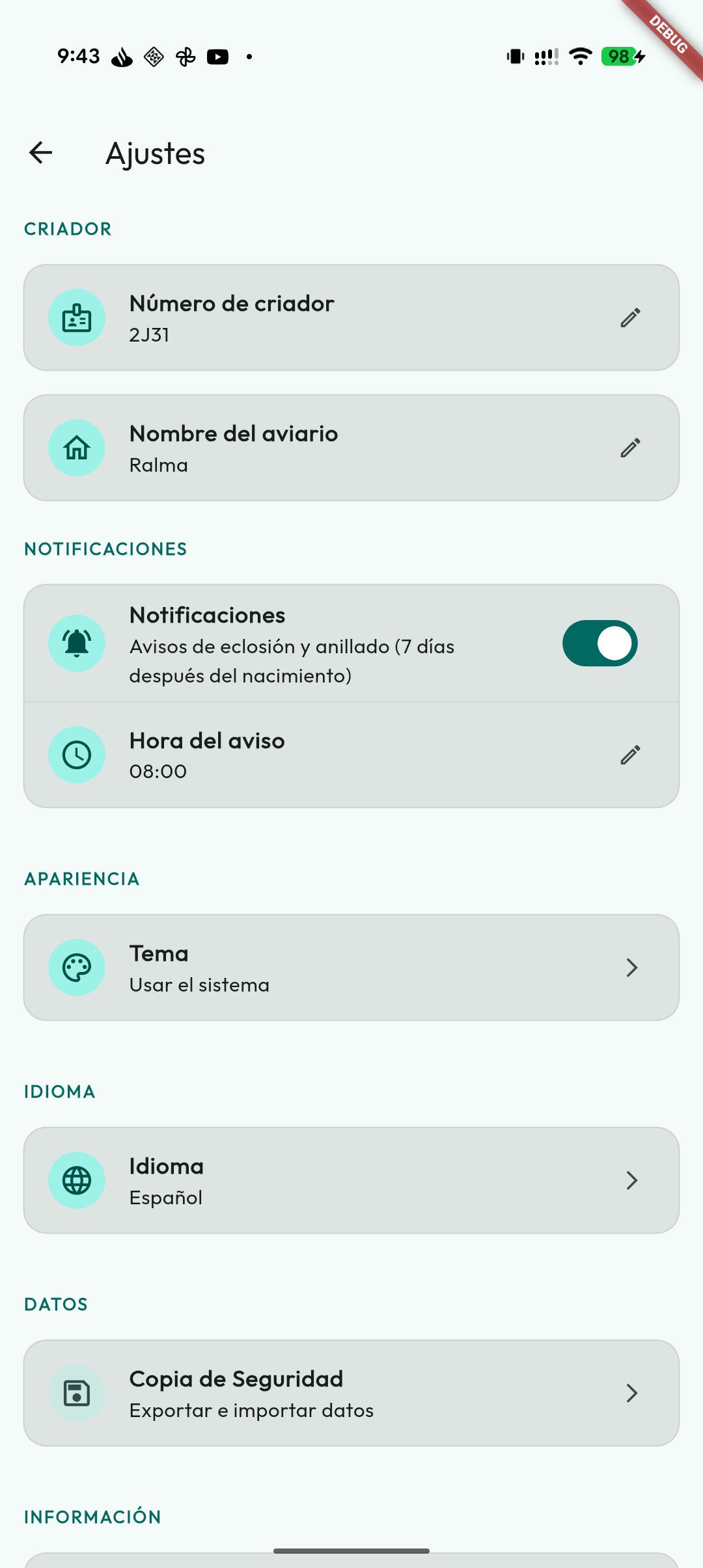
Settings and backups
On the Settings screen you can customise the app to your liking and, most importantly, protect all your data with backups in the cloud.
Backups
The app keeps a local copy of your data on the phone, so it stays fast and works offline. If you enable cloud sync, that local copy is also aligned with your account and other devices; sync is not a backup. In local mode, if the phone breaks, is lost or replaced, only an existing backup can recover the data. In either mode, protect yourself with Google Drive backups or keep a local .zip copy away from the phone.
Current backups are saved as a versioned .zip package: they include the database, restorable preferences and the aviary profile. Photos, videos and documents managed by the app are included by default; you can disable Include attachments if you need a lighter backup, although we do not recommend it because a backup without attachments cannot recover photos after changing phones or reinstalling the app. Older .sqlite backups can still be restored.
Google Drive backups
Link your Google account (first time only)
- Go to Settings → Backup.
- Tap "Link Google Drive".
- Select your account and sign in if asked.
- The app will request permission to save files in your Google Drive. Tap Accept.
- Done. Backup is now set up.
The files are saved in a private folder of your Google Drive that only Mis Plumas can see. They don't appear among your regular documents and won't get in the way.
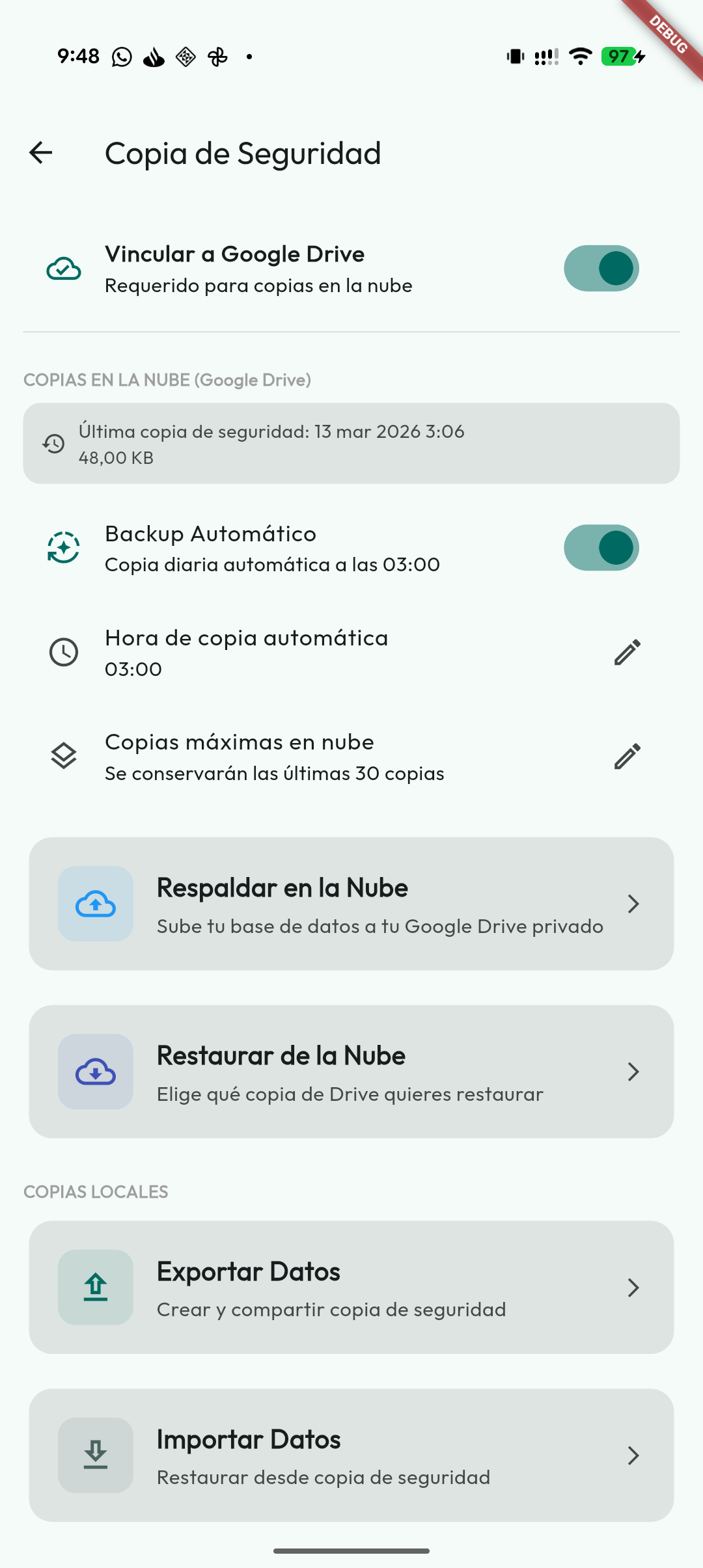
Make a manual backup
Once the account is linked, you can make a backup at any time:
- Go to Settings → Backup.
- Tap "Back Up to Cloud".
- Wait for the completion message. How long it takes depends on the size of the aviary, the attachments and the connection.
We recommend doing a manual backup before switching phones or if you haven't done one for a while.
Restore a backup
If you install the app on a new phone, or if you have to reinstall it for any reason, recovering all your data is very simple:
- Open Mis Plumas on the new device.
- Go to Settings → Backup.
- Tap "Restore from Cloud" and link your Google account.
- The app will download the backup and recover the data it contains. Check its date and whether it includes attachments: changes made after that backup are not part of it.
Before restoring, the app warns that current data, restorable preferences and the files included in the backup will be replaced.
If you use sync, restoring leaves this device paused until you choose between Replace the cloud with what you restored and The cloud wins, which downloads the account's data again. Merging is not offered after the database has been replaced. See Restoring with the cloud active.
Automatic backup
So you don't have to remember to do it manually, you can schedule the app to do it on its own:
- Enable the "Automatic Backup" option.
- Choose the time at which you want it to run (for example, 3:00 in the morning, when the phone is charging and you don't use it).
- The app will try to make the backup when it is due. Running in the background depends on the system and the connection; the time you choose does not guarantee an exact run. Opening the app also checks whether a backup is still pending.
The app keeps a limited number of copies in the cloud so it doesn't take up unnecessary space. By default it keeps up to 30 recent copies.
Export and import a local copy
In addition to Google Drive, you can save a local copy as a file to keep wherever you prefer or move to another device.
- You can create a full copy of the database.
- Attachments (photos, videos and documents) are included by default in the
.zipcopy; you can turn them off if you need a lighter copy. - You can restore it from the backups screen when you need to recover your aviary. On iPhone/iPad you can select
.zipor.sqlitebackups; if the iOS file picker does not filter them well, the app validates the format before restoring.
We recommend keeping some copy outside the phone, for example on your computer or in a personal cloud.
If you use the app in local mode and want to move your data to another phone, this is the right path: create a local .zip backup on the old phone, move it to the new phone and restore it from this same screen. It is explained step by step in Frequently asked questions.
On the same screen you will also find the Aviary CSV/Excel section, for exporting every aviary table in spreadsheet format. This package also includes the Inventory, with its products and purchases, and the Feeding plans with their phase calendar. The details are in Imports and exports.
Open or share a backup directly
You can also find a backup in Files or Downloads and choose Open with… Mis Plumas or Share → Mis Plumas. The app recognises its contents and opens the correct flow: a full backup restores the app, while an aviary CSV ZIP or Excel file opens the import that replaces the current data. You will see the same warnings and confirmations as when starting from Settings.
Before offering any import, Mis Plumas checks the actual contents rather than trusting the name or extension. SQLite databases must have the app identity and expected structure; current ZIP backups also include a SHA-256 integrity check to detect changes. Compatible older backups remain supported when they pass the structure and integrity checks. An invalid file is rejected before the database is closed or replaced, attachments are restored or resynchronisation starts.
Photo and attachment diagnostics
If you notice photos or documents missing from records (for example, after updating the app or restoring an old backup), the Backup screen includes the Photo & attachment check tool in its maintenance section.
When you run it, the app:
- checks your birds' photos, videos and documents one by one;
- automatically recovers the ones still stored on the device even if the record had lost track of them;
- tells you how many items were checked, how many were recovered and how many were not found.
A missing item means the diagnostics could not find its file on the device; it does not prove the file is lost everywhere. If you use sync, check whether it is still waiting to be downloaded from the cloud. If it is not there or on another device, you will need a backup that included the attachment. The diagnostics do not rebuild deleted files or remove any data.
Google Calendar sync
If you want to see the aviary events outside the app too, you can enable the integration with Google Calendar.
This option is off by default. To use it:
- Go to Settings → Data.
- Enable Google Calendar.
- Tick which event types you want to sync (all are selected; you can untick the ones you are not interested in).
- Choose your Google account and accept the link.
- The app will create a separate calendar called Mis Plumas.
The event types you have chosen are synced to that calendar:
- Estimated hatching;
- Ringing scheduled;
- Fertility reminder;
- Reminders (the ones you create);
- Treatments;
- Scheduled treatments (the recurring Health plans);
- Incubators (candling, move to hatcher and estimated hatching), if the Incubator module is active;
- Expiry of Inventory products, if the module is active.
With sync enabled, the Events to sync option appears below it, where you can change the selection at any time: the types you tick are uploaded on the next sync and the ones you untick are removed from your Google calendar (your data inside the app is not touched).
Events are stored in a separate calendar so you can enable it, hide it or check it without mixing it with your personal calendar.
If you disable the option, Mis Plumas will stop syncing new changes.
Other settings
Appearance
- Theme: choose Light or Dark, or Use system so it follows your phone's setting.
- App color: choose the interface colour palette between Teal (the classic one), Pink, Blue, Amber, Violet and Terracotta. The selected colour applies in both light and dark mode and is independent of the chosen mode.
- Ring display format: choose how the ring is shown in the app and in PDFs, without changing the stored data. Order its parts (federation, year, breeder code and number) with the arrows and use the eye to decide which ones are shown: Hide from the ring hides a part and Show on the ring brings it back. At least one must stay visible. A preview shows the result, and Reset returns to the usual order. If you hide the year, two birds with the same number from different seasons look the same on the ring; the bird picker in the Show Record, for instance, shows each bird's year underneath.
- QR style: customise how the QR codes for birds, pairs and cages look, each one separately: shape of the corners and dots, two colours (one for the corners and another for the dots) and the shape and colour of the central marker. A live preview shows the result instantly; the style is saved and included in backups.
- Daylight on Home: off by default. When enabled, it shows a daily daylight indicator on the main screen; tapping it opens the monthly calendar and the variation versus the previous day. You can choose between two modes:
- Natural (location): the app asks for location permission and calculates the daylight hours for your area.
- Artificial (manual plan): for aviaries with controlled lighting. You define a light plan by phases (pre-breeding, breeding, moult, rest) with their dates and the light hours at the start and end of each phase; the app works out the daily progression on its own (for example, +5 minutes a day). Optionally you can set exact dawn and dusk times and turn on the light reminder, which alerts on the days the schedule changes. If location is available, the calendar shows the comparison between natural and artificial hours.
- Species names: call each species what you call it instead of using the catalog name. See Species names below.
- Species quick access: shows shortcuts in the "All birds" list to filter by species with a single tap. You can choose the minimum number of birds needed to show each species and the order of the shortcuts. You can also choose how they are presented: as a grid, in a scrollable row or in a compact format. The "Show canary breeds separately" option gives each canary breed its own quick-access card.
- Show name first: if the bird has a name, it is shown before the ring in lists, pairs, calendar, treatments, show records and reports. If you leave it off, the ring appears first.
- Identify the cage by: choose what each bird’s cage label shows in My Birds. Code is the usual: “V27”, with the space in front only when that code is repeated in another space. Space and code always adds the space, “Room 1 · V27”. Alias shows the cage’s alias if it has one and, otherwise, its code; a long alias takes two lines at most. The My Birds search finds by whatever the label says and, always, by the code too.
- Hide birds no longer in the aviary: enabled by default. Transferred, deceased, donated or lost birds are not shown in lists or PDF exports and no longer count as occupants of their cage, although they still appear in genealogy and history. In the bird list you can show them temporarily with the “Out of the aviary (N)” chip. Turn the option off if you prefer to see them all the time.
- Compact record: off by default. When it is on, the bird's record shows only the current cage and the treatments in progress; the cage history and the finished or scheduled treatments fold away and unfold with a tap. Nothing is deleted, and the setting is remembered across your devices. See Compact record.
Species names
The catalog name is the one in the field guides, and often not the one you use in your aviary: some Spanish breeders, for instance, call the Lesser Goldfinch “capita negra”. In Settings → Appearance → Species names you can give each species your own common name:
- The list shows the catalog species you have in your aviary and those that already have a name of yours, with the catalog name and the scientific name underneath.
- Tap a species, type your name in Your name for this species and save.
- For a species you do not have in your aviary yet, tap Other species and search the whole catalog for it (hybrids are not listed in that search).
To go back to the catalog name, open the species and tap Use the catalog name, or leave the field empty and save.
- Your name is shown throughout the app, in any language, because it is your word and not a translation. The species picker also finds the species by your name.
- Your PDFs show your name with the scientific name next to it, for example “capita negra (Spinus psaltria)”, so anyone reading the document knows which species it is.
- Your birds do not change: they are still stored with the catalog species, so you can change or remove the name whenever you like without touching any record.
- It is an account setting: it travels with sync to your other devices and is included in backups.
- What other breeders see carries the catalog name and the scientific name: transfers, listings, the email you write to an advertiser and the text when you share a listing. Whoever receives a bird sees it with their own name, if they have set one.
- Only catalog species can have a name of your own: a species typed in by hand on the record is already called the way you wrote it.
Accessibility
In Settings you can also adapt the app to make it more comfortable:
- Text size: increase or reduce the interface scale without relying only on the system setting. You can adjust it between 50% and 150%.
- High contrast: reinforces colours, borders and surfaces to improve reading.
- Reduce animations: minimises transitions and motion if you prefer a visually more stable experience.
These options are stored in the app and apply to the main screens.
Notifications
- Enable or disable the alerts from here. The breeding reminders include:
- Upcoming hatchings: alert on the expected day chicks are due to hatch.
- Pending ringings: alert after the days you have set from the actual hatching date, with general or per-species settings.
- Fertility reminder: alert counted from the incubation start; the initial general value is 7 days and it also accepts per-species settings.
- All these reminders are sent at the reminder time you choose (by default, 8:00 AM).
- The daily Feeding alert also arrives at that time, and only on days with news. What each plan alerts about is chosen in the plan itself.
- If at any point the system asks you for permission to send notifications, accept it so you don't miss the reminders.
- From the Home bell you can open notification history. Tapping a notification opens a bottom sheet with the full text and, when applicable, direct actions such as opening the bird, pair, clutch, link or deleting the alert. What the bell counts and what each section of that screen shows: The bell and the notifications screen.
Breeder profile
- Set the breeder number and aviary name. The number is used to build composite rings and the aviary identity appears in supported documents.
- Change the logo or aviary image from the edit action in the side-menu header. It is stored persistently and included in the visual identity and backups with attachments.
Information
- In About you can use What's new to open the public Mis Plumas changelog. It is a manual check: the app does not compare versions with the stores, because Google Play or App Store rollout can be slower than the changelog publication.
Optional modules
- Income & Expenses: show or hide the aviary accounting module in the side menu. Hiding it does not delete the saved movements.
- Incubators: show or hide the module for managing physical incubators and hatchers. When enabled, incubator screens, actions to send eggs from a clutch and specific calendar events appear. See Incubator.
- Inventory: show or hide the aviary products and medication module, with purchases, stock, expiry dates and configurable alerts. It is off by default and, when hidden, the saved data is kept. See Inventory.
- Health: your birds' health history, treatments and health plans, with Feeding inside it. It is on by default. Turning it off hides the Health screen, its side menu entry, the Health section of the records and its items in the calendar, and cancels its alerts; nothing is deleted. Turning it back on also turns on Feeding. See Health.
- Feeding: right below Health, because it lives inside it: feeding and supplement plans by season, with what is due each day and a daily alert with what's new, in a tab in Health. It is on by default and can be turned off separately; with Health off, it cannot be turned on. Turning it off cancels its alerts and keeps the plans, and the row says how many you have saved. Turning it on with Inventory off offers to turn that on too, just once. See Feeding.
- Weighing: also inside Health: your birds' weight as health events, with the Weight row in the record, the chart of its progress, the Weighing tab of Health and the Weighing session. It comes on and can be turned off separately; with Health off it cannot be turned on. The loss percentage that triggers an alert is chosen here too (10 % by default; it can be turned off), and so is the Weight unit: grams or ounces. The unit is proposed from your profile's country, not from the language, like the currency; weights are always stored in grams. Turning it off deletes nothing. See Weighing.
- Nests: number nest boxes per cage and record their assignments and clutches. It comes disabled and keeps its data when hidden. See Nests.
- Address book: private notebook of breeders, notes, ratings and noted birds. It syncs with the cloud since 6.2.0 and is included in full backups, but not in CSV/Excel. See Breeder address book.
- Light plan: show or hide the module for managing lighting hours by phases. See Light plan.
- Transfers between aviaries: available once you have signed in to the cloud. It lets you receive offers and send records by QR code or by searching for the breeder number. Turning it off hides it from the menu without deleting the history.
Breeding, language and currency
- Adjust the consanguinity sensitivity and decide whether you want to see warnings when creating pairs.
- Customise the incubation days by species. The app uses those values to calculate the expected hatch date and recalculates active clutches when you save them.
- In notifications you can customise the days for the fertility check and ringing, globally or by species. Multi-day health plans create one daily alert per schedule, labelled Start and Day N of M.
- Choose the interface language and the currency used by Inventory and Income & Expenses.
Which settings change on your other devices
If you sync preferences, the modules, language, currency, breeding settings, your species names and other account preferences travel. Theme, palette, text size, high contrast and animations are set on each device. Also local are the active filters of the bird list, notification permissions, Google connections, and the network and automatic-backup options.
A full backup includes the address book. Restoring it replaces this device's address book with the one in the backup, like the rest of the aviary; it does not merge two address books.