Your birds
The Birds section is the heart of Mis Plumas. Here is the complete record of all your specimens: from basic details to their genetics and family tree.
The bird list
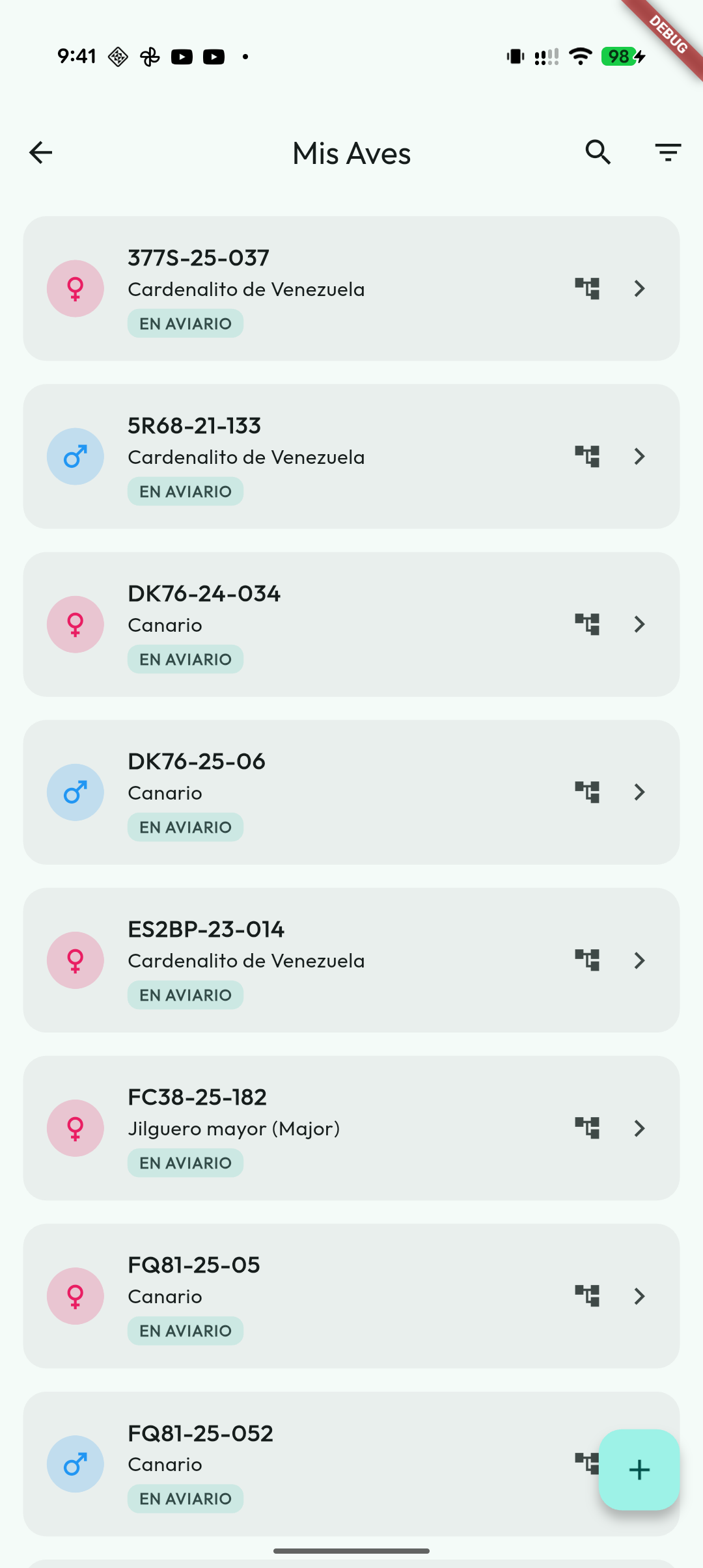
When you enter the section you will see all your birds in a list. From here you can:
- Search by name, alias, ring number or cage: type the code you see on each bird’s cage label —“V27”— and you get the birds in it, including paired birds that live in their pair’s cage.
- Filter by species, visible mutation, carrier, sex, status, year, foster mother, marking ring colour and cage when you enter from a specific location.
- Use species quick access when it is enabled in Settings: they appear as chips with a counter, apply the species filter when you tap them and highlight the active filter with colour.
- If you filter by Canary, extra filters for type and breed/range appear so you can separate, for example, song, colour, posture, Harz or Malinois.
- If you filter by Hooded Siskin (Cabecita Negra), you can filter by South American mutation: yes, no or all.
- Remove filters individually: active filters appear at the top as tags, each with its own button to remove it, in addition to the button to clear them all at once.
- The active-filter area stays visible while you scroll, with Clear (the crossed-out funnel icon) always at hand when a search is applied.
- Sort by ring, name, species, year, mutation, status or sex. The app remembers the last sorting you used.
- Show the ring with the visual order you have chosen in Settings, without changing the stored ring data.
- See at a glance the sex, the marking rings and each bird’s labels, grouped: first the status and alerts; then the genetics —the visible mutation (
Classicif there is no mutation), the carriers, the possible carriers, which have just an outline, and the hybrid; the carrier labels name every mutation, and wrap onto another line if they do not fit—; then breeding and prices, and last the cage and Notes. - Set or change the cage without opening the record: the cage label is a button. A bird with no location shows No Cage; a housed one shows the code of its cage (
V27,C27A…, with the space in front only if another space has a cage with the same code). Tapping it opens the cage picker, and the change is saved as soon as you choose one; Remove leaves the bird without a cage. The move is logged in the bird's cage history, just as if you had made it from the form.- The picker shows what is in each cage. An individual cage that already holds another bird or a pair is greyed out, with Assigned bird or Occupied by pair #N. You can put the bird in a breeding cage that holds another pair, but the app first warns you that it will stay there on its own, without joining that pair. An aviary always has room for more birds.
- A paired bird shows its pair's cage, because forming the pair hands the cage over to the pair. If you take it to another cage, the app first warns you that it belongs to an active pair, and it does not offer Remove: the pair's cage is changed from the pair.
- Use Generate QR to print a sheet of QR codes from the birds visible in the list, respecting the current filters and your configured QR style.
- Tap any bird to open its full record; editing then starts from the actions menu.
Birds no longer in the aviary
By default, the app hides transferred, deceased, donated and lost birds from the list: they stay saved with all their genealogy and history, but they do not mix with the birds you have in the aviary right now, they do not count as occupants of their cage and they do not appear in the inventory PDF exports either.
- When there are hidden birds, the list shows the “Out of the aviary (N)” chip. Turn it on to see them and turn it off again to hide them.
- Departed birds stand out at a glance: their status is shown in colour —each one its own: transfer, donation, loss or death—, with the event date if you recorded it, and they do not carry a cage label because they no longer occupy one.
- If you would rather always see every bird, turn off Hide birds no longer in the aviary in Settings.
Adding a new bird
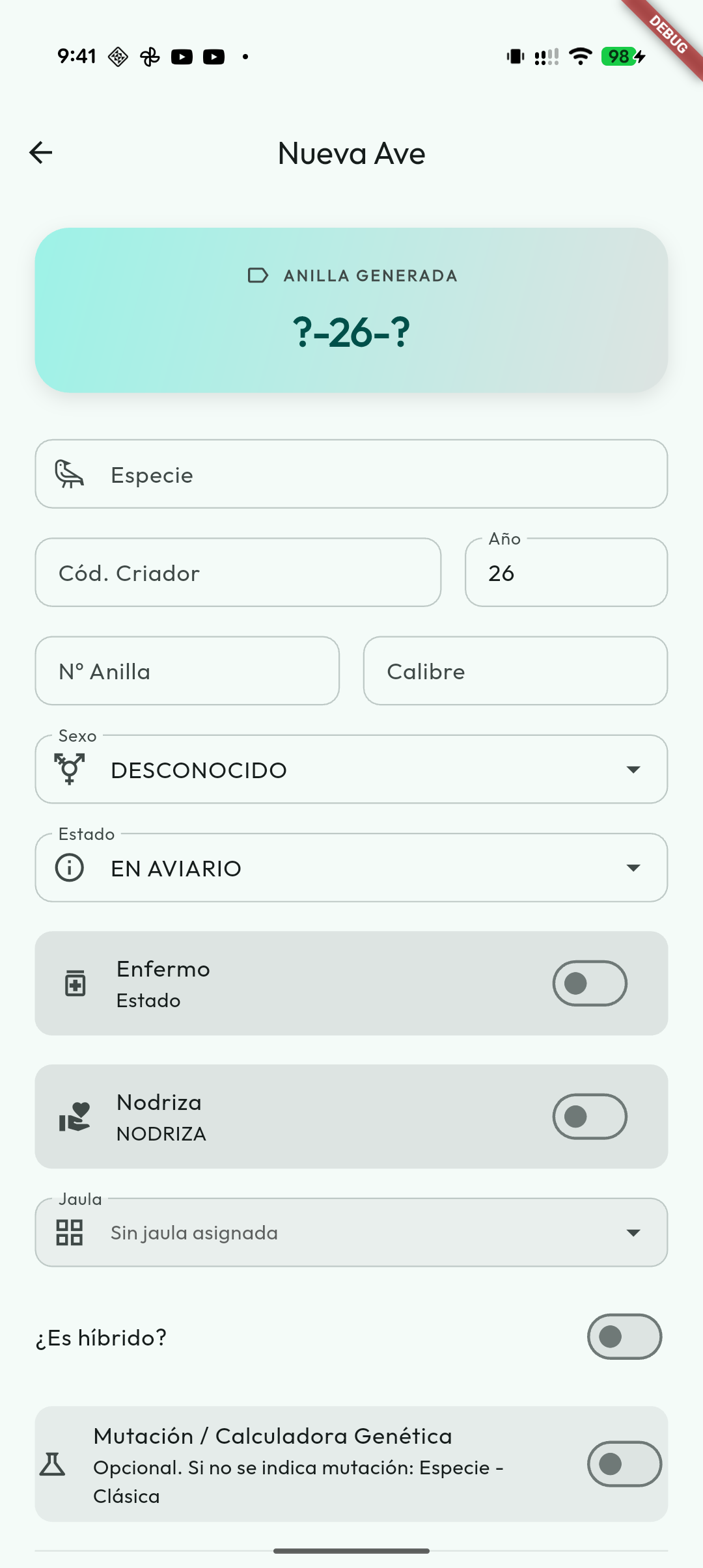
Tap the "+" button to register a new bird. The form is split into sections to make it easy to fill in.
1. Basic details
- Species and breed: Canary, Wild, Exotic or others. The catalogue uses Agapornis as the unified common name for lovebirds. Since 5.6.0 the species name appears in the app's language: the “Diamante Mandarín” reads “Zebra Finch” in English or “Zebrafink” in German. The picker's search finds by the name in your language, by the Spanish one, by the scientific name and by common synonyms. What is stored in the record does not change with the language, so you can switch as often as you like without altering any bird.
- Name: if you want to identify the bird with a proper name in addition to the ring.
- Ring: Made up of the year of birth, your breeder code and the serial number. You can enter them separately and the app builds the full ring.
- Sex and date of birth. For a new bird you must choose the sex; if you do not know it, select Unsexed. The date of birth is optional: if you know it, you can enter it; if you leave it blank, the age is worked out from the ring year. With the date of birth (or, failing that, the bird/ring year), the record shows the age in years and months; if the bird is not a year old yet, only in months. The year is shown in full (for example
2026) in the record, the PDFs, the year filter and the form, while on the ring it is still used and stored with two digits, just like the bird's physical ring. And if in December you already ring with next season's year, the app understands it correctly too. If you enter the date of birth, it also appears on “View PDF sheet” and on the genealogy PDF, below the year. And if you have already opened next year's season, the new-bird form proposes that year for the ring. - Cage or location where it is housed at the moment. The record always shows the cage code (for example
C15orV02); if the cage has an alias, it appears alongside the code. The picker follows the same rules as the cage label in the list: occupied individual cages are greyed out. - Marking rings: you can add several colour markers to recognise the bird quickly in the cage. Besides the colours in the list, grey included, you can add a custom colour: pick it on a colour wheel, adjust the shade and, if you like, give it a name (for example, "Club 2026"). If you use Mis Plumas on more than one device, update them all to 6.4.4 or later: earlier versions don't know grey or custom colours and would remove them when the bird is edited.
Cage history
Every cage change is recorded automatically. In the bird's record you can check a timeline with the previous cage, the new cage, the date of the move, the reason and, when applicable, the associated pair and breeding season.
This history lets birds go back to their previous cage or their origin cage when you separate pairs or end a breeding season. If there is not enough information to work out that destination, the app keeps the bird in its current cage and says so in the result.
2. Family (sire and dam)
You can link the bird to its parents by picking them directly from the list of birds you already have registered. That way the family tree builds itself, without you having to do anything else.
If you have already entered the year of birth or ring of the bird you are registering, the app only offers as possible sire and dam birds from previous years. This way you avoid picking other chicks from the same season by mistake.
The Genealogy block uses the same card-based form design as the other sections and can be collapsed or expanded, so the form stays comfortable even when the bird has many details.
3. Genetics
This is one of the most powerful parts of the app. Depending on the species and bird type, the corresponding fields appear.
For a fuller explanation by bird group, see Genetics by species.
For colour canaries, you can specify:
- The lipochrome (yellow, white, red…).
- The category (intensive, frosted, mosaic…).
- Visible mutations, classic factors and associated traits such as red eyes, crest, pied or white wings where applicable.
- Pied by area: when you switch on “Is pied?” you add the spotted areas with the “+” button (head, throat, chest, back, wings, tail, belly) and give each one its own percentage. Below it you can record whether the bird has white nails.
For cockatiels, the app shows its specific up-to-date catalogue. You can record mutations such as Pied, Whiteface, Yellowcheek, Fallow, Emerald, Edged, Cream Face, Pastelface, Pearl, Cinnamon and Ino.
In cockatiels,
LutinoandAlbino (whiteface + lutino)are treated as visual combinations:LutinoisInowithoutWhiteface, and the albino isIno+Whiteface.
Siskins, the Eurasian siskin included, have their own profile: Brown and Pastel are not sex-linked, so a female can be a carrier, and Sílice is dominant, so it is not recorded as carried. The red, hooded and black siskins keep the profile of the Spinus genus, with Brown, Pastel (ex Agate) and Pastel-Brown (ex Isabel) sex-linked, Topaz, Rubino, Dilute S.F., Dilute D.F. and Sílice.
For Agapornis, the app separates roseicollis, eye-ring species, taranta and rare/historical cases. The catalogue includes base mutations and factors such as Aqua, Blue, Turquoise, Blue1Blue2, Ino, Opaline, Violet, Grey, Edged, Marbled, Quartz, Fallow, Pied, Ewing, Slaty, Mottle, Crested, Lemon, Onyx, Rubino and other documented factors.
For other psittacines, such as Budgerigar and Monk Parakeet (Quaker), there are closed profiles with dominant, recessive, sex-linked and single/double-factor traits where applicable. The app only offers carriers when they make sense for the bird's sex.
In Hooded Siskin (Cabecita Negra) you can also mark whether the specimen has the South American mutation. That mark appears in lists and can be used as a filter.
For several estrildids, closed profiles have been added on the Classic base:
- Tricolored Parrotfinch (Forbes's): Sea green.
- Blue-faced Parrotfinch (Kittlitz's): Sea green, Lutino, Cinnamon/Brown, Black-eyed yellow and combinations such as Lutino sea green, Yellow sea green or Satine.
- Red-throated Parrotfinch: Sea green, Lutino and Lutino sea green.
- Pin-tailed Parrotfinch: Yellow and Sea green.
- Painted Finch: Orange and Brown.
- Society Finch: mutations such as Mocha, Red, Pastel, Pale wing, Grey, Albino, Ino (Cream) and White, plus the option to record whether the bird has a crest.
For the Gouldian Finch, genetics is recorded by area: Head, Breast and Back. In each area you can choose the visible phenotype and, where applicable, its compatible carriers. The record and the lists show those phenotypes by area, so that a complex Gouldian does not simply appear as Classic.
In species with a compatible profile, the form lets you select several visible mutations at the same time using chips. That way you can save birds that do not fit neatly into a single mutation field.
The app filters out incompatible combinations according to the rules of its catalogue. Always review the data you enter: the filter does not, on its own, confirm the bird's real genetics.
Not sure what lipochrome or the mutations are? No problem: you can leave those fields blank and fill them in later when you have the information.
If you cannot find a mutation in the catalogue, use Can't find the mutation? inside the genetics block. The app prepares a message with the species, genetic profile and selected mutations so you can email us; if the phone has no mail app configured, it copies the text and opens the website contact form.
If it is the species that is missing, open the species picker and tap Can't find the species?: it is at the bottom of the list and, when you search, right after the results. The app prepares the notice with what you were searching for —you can add the scientific name— and sends it the same way as the one for mutations.
If what you are looking for is a canary breed (Gloster, Portuguese Harlequin, Timbrado…), type it in the same search: the breed appears in the list with its type and, when you choose it, the bird is registered as a Canary with the type and breed already set in its genetics.
4. Carriers
When a mutation may be present without being visible, you can register it in the Carrier of block.
- In autosomal recessive mutations, both males and females can appear as carriers.
- In sex-linked recessive mutations, the app only allows carriers when it makes sense for that sex.
- Dominant or already visible mutations are not offered as carriers to avoid duplicates.
- If you change the sex, the species or a visible mutation, the app reviews the carriers and removes the ones that are no longer compatible.
In cockatiels, for example, Whiteface, Yellowcheek, Fallow, Emerald and Pied can be handled as autosomal recessives where applicable. Pearl, Cinnamon and Ino follow sex-linked rules, and Edged, Cream Face and Pastelface are treated as co-dominant, so they do not appear as hidden carriers.
In cockatiels, the catalogue distinguishes Ashen Fallow and Bronze Fallow. It also keeps Fallow (unspecified) for records where it is not known which one it is; pick the specific one when you have that information.
Possible carriers
In the general Carrier of selector, each selected mutation has a Possible control. Turn it on when it is a suspicion and turn it off once confirmed. The same mutation is never both confirmed and possible.
Possible carriers are shown separately on the record, in PDFs and in compatible exports; they also travel through sync and compatible transfers. They are not used in the genetic calculator or as confirmed carriers in cross warnings: the calculator tells you which ones it left out.
The Gouldian Finch by-area editor offers it too, and so does the roseicollis one: under Parblue line (Aqua/Turquoise) and Ino/Pallid Z locus, when you choose a carrier (for example “Green split Aqua (+/aqua)”), a Possible checkbox appears. Once it is ticked, the editor keeps showing that carrier with the box ticked, but in the saved genotype the locus stays “Green (+/+)”, so it does not count in the calculations, and the allele moves to the bird's possible carriers. There is room for one per locus, and only on a locus that does not already show or carry another allele. A female does not get it on the Ino/Pallid locus, because she carries a single allele and shows it, and the dark factor is not carried. The general Carrier of sheet does not show these possible carriers: you change them in the roseicollis editor itself. If you sync with another device that still runs a version earlier than 6.2.0, update it: when it saves that roseicollis, its form drops the possible carriers of the loci.
5. Hybridisation and fertility
If you register a hybrid bird you can state the target species of your breeding programme and its generation (F1, R1, R2…). Since 5.9.0 the generation is a fact of its own, not a guess from the blood percentage: two F1 birds crossed give F2 (it used to say F1, because F1, F2 and F3 all sit at 50%). With both parents registered the app works it out on its own —F1 × pure = R1, R1 × that same pure = R2…— and, when a cross fits no series, it shows the exact cross (“F1 × F2”) instead of inventing a label. F1 × R1 is shown with the breeders' convention: “F1½”.
Every generation says where it comes from: declared by you, computed from the lineage or estimated (the old value, deduced from the percentage). Estimated ones are marked as “F1 (estimated)”, and the list has an “Estimated lineage” filter with how many are left to review; from the record you can confirm it or fix the lineage.
The target species is your intention, not evidence. It plays no part in computing the generation: it only says where you are taking the line. Only in old records, with nothing but the percentage, is it used as a reference — and the result is always marked estimated.
Fertility is no longer something you tick: the record estimates it from the cross the bird came from and shows it by sex, because they do not always match —in the serin mule, for instance, males are fertile and females rarely raise a clutch—. If the cross is not documented in the app you will see “No data” instead of assuming sterility. The “Is it fertile?” checkbox is still there for what you have verified: if you tick it, it overrides the calculation.
Crossing two subspecies —say a major goldfinch with a parva one— is tracked too: you get an F1 at 50%, and back-crosses take you to R1, R2… That is what you need when moving a mutation from one subspecies to another until the line is clean. What changes is that the offspring are fertile: any goldfinch crossed with a goldfinch is, whatever lies behind it (parva, major, caniceps…).
Ancestors without a record
The bird you buy almost always comes with a pedigree, but its parents are not in your aviary. Now you can declare them anyway: in the hybridisation block, each parent is resolved in one of these ways.
- Bird from the aviary — picked from your list (it is genuinely linked, see below).
- Pure — a specific species.
- Known hybrid — its generation (
F1,R2…), the two species of the cross and, in the R series, which one it was back-crossed to. - Compute from its parents — another level opens to describe its parents, and from there another with “Add generation”: as many as you need.
- Unknown — what you do not know stays blank; nothing is invented.
While you build it, the app shows the lineage result: generation, cross and blood shares (“75% Major · 25% Parva”), with the unknown part listed separately if there is one. The backcross parent is a field of its own: it is not taken from the target species, because you may be heading for the serin and have back-crossed to a canary.
The lineage links to the family tree
If a bird from your aviary appears in that chain it is not left as loose data: the app links it in the tree —as grandparent, great-grandparent or whatever degree applies, with its paternal or maternal branch— and draws it in the genealogy next to the “NO RECORD” ancestors. When you fix an ancestor, descendants are recomputed on their own.
If you later remove that kinship from “Manage relationships”, the app warns you that it will also leave the lineage and recomputes the generation. And if you correct by hand a kinship the lineage had proposed (“it is actually its uncle”), your correction is respected: the app does not undo it on its own.
From F2 on, the record, the list and the PDFs stop naming the bird after the founding cross and show the real line: “Major × Parva · F2”, with its exact cross, the composition and where that comes from. Search finds it by that name too.
Mark as pure species (and step back)
When you work a backcross line, from R3 (93.75% blood) on the record shows “Mark as pure species”: that individual stops being treated as a hybrid and counts as the species you choose —the app proposes the majority one in its composition, never the breeding target blindly—. Since 5.9.0 the decision is reversible: the previous lineage is kept and the record offers “Restore as hybrid”. It is only blocked if you changed the lineage or the parents afterwards, because then the snapshot would no longer match.
When the bird travels
When you transfer a bird or export it to CSV/ZIP, its lineage travels with it as an anonymous summary: the records of your aviary are never exposed (registered ancestors become “pure” or “known hybrid” with their generation). Whoever receives it sees the pedigree, not your aviary.
And if two devices change the lineage at once, the losing version is not thrown away: the record shows you both —with their parents and generation— and you decide whether to restore yours or discard it.
6. Notes and status
- A free notes field to jot down anything you want to remember about that bird.
- You can mark the bird as deceased, transferred, donated, lost or on loan when needed. The bird is organised by its status, but its data, family tree, show record and documents are kept.
- When you choose one of those statuses you can record the event date (date of death, of transfer, of donation, of the loss or the start of the loan). The app suggests today's date, but you can change it or leave it empty if you do not know it. That date is then shown on the record and in the list.
- When a bird leaves the aviary —transferred, deceased, donated or lost— the app automatically removes it from its cage, so the location becomes available for other birds.
Lost is the bird that escaped, was stolen or went missing; donated, the one you gave away for nothing. Both statuses are also a quick action in the record's menu, without opening the edit form: pick the date and, if you want, note how it was lost or who you gave it to. Donating never asks for a price nor creates any income in Income & Expenses —that is what tells donating apart from transferring—.
If the bird turns up or comes back, the same menu has “Return to aviary”: it goes back to active and you can assign it a cage again. The exception is a bird you transferred through the cloud and the other breeder accepted: its record is the transfer history and cannot be returned to the aviary from it. It comes back when that breeder transfers it back to you from their app; if that is no longer possible, change the ring on the historical record and add the bird again.
If you try to delete a bird that is the parent of others, the app tells you how many descendants it has —children, grandchildren and so on— and, if it fosters other pairs' clutches, warns you too; and it offers Manage status and health to change its status instead. If you delete it anyway, it stays in its descendants' tree marked as deleted, but without a record: no photo, no history, nothing to open.
Purchase and sale price
On each bird's record you can note, optionally, what you paid for it and what you sell it for. The bird does not need to be on loan or listed: these are your own figures, in the currency you set in Settings.
They serve two purposes:
- They show at a glance in the list: each bird displays a price chip, green for the sale price and orange for the purchase price.
- They link to your accounting, but you decide: when you enter the purchase price, the app offers two ways —record it as an expense in Income & Expenses, or only value the bird, which leaves the balance untouched—. And the income is offered whenever you record or change the sale price of a transferred bird, not just at the moment of transferring it.
- The estimated value is another matter: it is what you think the bird is worth, and it never creates an expense or income. It is the way to value a bird born in your aviary, which has no purchase price. See Your aviary's value.
Always asking first: no entry is created unless you confirm it, in case you had already noted it by hand. And the entry stands on its own: deleting the bird later does not delete the expense or the income.
Editing a bird
Tap the bird in the list to open its record. Choose Edit from the actions menu, change the required fields and tap Save. Changes are not applied until the form is saved.
Some details can be changed without going into Edit: in the record, tap the Marking rings row to add or remove colours, the Cage row to move the bird to another cage (with the same kinship warning as the rest of the app) or the Notes section to write or correct them. Those rows show a small pencil. The Weight row opens its weighings, where you can add a new one. Genetics and everything else is changed in Edit.
Duplicating a bird
If you need to create a specimen very similar to another one, open the original bird profile and choose Duplicate bird from the actions menu. The app opens the form as a new bird, focuses the ring number and highlights it so you do not forget to complete it.
This is useful for siblings, same-species batches or birds bought together. The app leaves the fields that identify the new bird empty: ring number, name, ring size, marking rings, birth date and notes. Before saving, review inherited details that may not apply to the new bird, such as status, cage or parentage. Health history, offspring, pairs and attachments are not copied: they belong to the original bird.
If you try to save without filling in a required field (such as the ring number), the app warns you and takes you straight to the missing field, which it also marks in red.
Viewing the family tree
Inside each bird's record you will find its family tree, where you can see the parents, grandparents and other ancestors you have registered. If you tap on any of them you go straight to their record. An ancestor you have deleted stays in the tree, marked as deleted and with no record to open, so its descendants do not lose the branch; also in the genealogy PDF.
The tree also shows related birds from the same generation. Birds that share both father and mother are shown as full siblings; birds that share only father or only mother are shown as half siblings. The family tree PDF keeps the same distinction.
Photos, videos, documents and show record
On each bird's record, the Documentation section groups the bird's health, photos, videos and documents, so all that information is in the same place:
- Photos and videos of the bird (from the same Add photo/video button).
- Documents of the bird.
- Judging sheets.
- Veterinary certificates.
- Transfer documents or other attachments.
- Documents linked from show record entries.
When adding a photo or video, you can choose between taking a photo with the camera, recording a video or opening the gallery. The gallery opens with the phone's own picker, so recent items, albums and videos are shown according to Android or iOS without Mis Plumas reading the whole library itself.
Add a photo from Share
You can also start outside the app. In Photos, Gallery, Files or another app, select one image and choose Share → Mis Plumas. On Android the app opens directly; on iPhone/iPad the extension prepares the file and tells you to open Mis Plumas to continue.
A preview and search box let you choose the bird by ring, name or species. You can then:
- Add to its photos, without changing the current profile photo.
- Add and use as profile photo, which keeps the image in Photos and also makes it the bird's main photo.
JPEG, PNG, GIF, WebP, HEIC and HEIF are supported. One image is handled per share action and the app copies it into the bird's private attachment storage; it does not need permission to browse your entire photo library. If you make it the profile photo, you can adjust its framing afterwards from the bird record.
Images open in an internal zoomable view. Videos, PDFs and other documents open with the compatible app installed on the device.
If a photo represents the bird well, you can mark it as the profile photo using the star on the thumbnail. That image is used as the thumbnail in the lists and as the visual background of the record's header.
Because the photo is cropped to fit in those two places (the round thumbnail in the list and the wide header), you can adjust the framing so the bird isn't cut off: on the profile photo, tap the framing button and drag the image to choose which part shows; a circle shows you exactly what will end up inside. The framing is saved for that bird and syncs to your other devices, so it looks just as well framed on your phone and your tablet. You can change the photo or remove it at any time; when you change the photo, the framing resets. If you restore a copy without attachments or the image no longer exists, the app falls back to the bird's normal icon without losing the record.
The Show Record section of the record is always visible, even without results. It shows the bird's contests with their modality (individual or team), its score and its place, with the best score first and the TOP label, and from there you can add, change or remove its results without leaving the record. See Results on the bird's record.
Compact record
If the cage history and the finished or scheduled treatments get in the way, turn on Compact record under Settings → Appearance. The record then shows only the current cage and the treatments in progress (including overdue ones pending review); the rest folds under a button with the count (“Show the 3 previous moves”) and unfolds with a tap. Nothing is deleted: it is a view, and the preference is remembered across your devices.
Health, treatments and events
In each bird's record you will find the Health section. From there you can register medical treatments associated with that specimen:
- reason for the treatment;
- medication;
- dose;
- route of administration;
- start and end date;
- preferred time;
- periodicity if it is a recurring routine;
- status: active, paused or finished;
- internal notes.
Active treatments are highlighted in the record. If a treatment affects a whole cage or the entire aviary, it also appears in each corresponding bird's record. Finite treatments remain active throughout their end date and the app marks them Finished automatically the following day. You can also use Finish early; today then becomes the actual last day and future alerts are cancelled. A Paused treatment never finishes automatically.
In addition, each treatment is automatically added to the Calendar as a daily event throughout the indicated period. Tapping the calendar event shows the treatment details and a shortcut to the bird's record.
You can also add one-off health events such as check-ups, diagnoses, vaccinations, deworming, weight checks or observations. These records support attachments and stay in the bird's health history and in the global Health view.
To review all birds, treatments and events from a global view, create records by bird, cage or the whole aviary, or export a specimen's health history as a PDF, see Health.
Feeding
With the Feeding module on, Bird Details has the Feeding row: a chip for each plan it gets today (for example, Moult mix), “+N” if it has more in other phases and + to create a plan just for that bird. Each chip opens What's in it, with Why it gets it. Tapping the row opens its sheet: Now, with what it eats today and since when; In other phases; and History, with what it ate before and on which dates. Each history entry shows what the plan contained then, and the history starts on the day each plan was created. With the Compact record, the row only shows today's plans.
Weight
With Health and its Weighing submodule on, the record has the Weight row: the last weighing, when it was and whether the bird has gained or lost since the previous one (in red if it has lost more than the percentage you set in Settings). Tapping it opens its weighings, with the chart and the metrics. When adding or editing, the Weight (g) field creates a weighing dated today if you type a new value. Each weighing is a health event of type Weight/check, so it also shows in the health history. See Weighing. The PDF record includes the Current weight with the date of the last weighing.
Exporting birds
From the list you can generate PDF documents with your birds. The export includes the main information for each specimen, such as ring, sex, species, mutation, carriers and other useful data depending on the document type.
You can also export birds in On loan status to hand over a clear summary to another person without having to prepare the document by hand.
From the record, View PDF sheet lets you choose whether to include no photos, the profile photo or all of them. Photos are placed at the end, uncropped. In the preview you can zoom each page with two fingers or a double tap, and share, print or save the document.
Sharing and importing a bird
When you transfer a bird to someone else, you can pass them its full record so they can add it without typing anything.
Exporting / sharing a bird
From the bird's record, in the actions menu, tap Export / Share bird. Before creating the file you can choose what to include: full or basic record, status, treatments and health events, genealogy as a note, photos, videos and documents.
The app creates a ZIP file even when the bird has no attachments, so the format is always the same. Depending on the options you tick, it can contain:
- all the bird's data (ring, species, sex, dates, full genetics, carriers, visible mutations, hybridisation, notes, etc.);
- its attached photos, videos and documents, if you choose to include them;
- the sire and dam rings or the genealogy as a note, if you choose to include it;
- treatments and health events as a note, if you choose to include them.
If you choose to keep the bird's status, the transfer or departure date you recorded travels too, so the recipient keeps that detail on the record.
When the file is generated the system share sheet opens, so you can send it via WhatsApp, email or any other channel.
Besides sharing it, you can save it as a local file from the export actions sheet.
Importing a bird
The recipient imports the file from the bird list, with the Import bird button. The app lets you choose between importing a full ZIP or a CSV. After choosing the file you will see a confirmation with the ring, the species and the number of attachments. When you accept, the bird is recreated in your aviary with its data and attachments included.
Alternatively, they can open the ZIP or CSV from the file manager with Open with… Mis Plumas, or send it through Share → Mis Plumas. The app recognises it as an individual bird record and shows the same confirmation before adding it.
Keep in mind that:
- The bird arrives without an assigned cage and without linked genealogy (sire and dam only travel as a reference, because those birds do not exist in your aviary). You can assign it a cage and link its family whenever you like.
- The ring is checked before importing: if you already have a bird with that ring, the app warns you and does not duplicate it.
- If you did not choose to include the status when exporting, the imported bird comes in as active, ready to use.
Transferring a bird directly through the cloud
The ZIP above shares a manual copy through any channel. If both people use a compatible cloud account, Transfer through the cloud creates a directed offer instead: the recipient accepts or rejects it, and acceptance keeps the original record as Transferred history in the sender's aviary. While pending, you can review it, change its message or attachment inclusion, and cancel it under Transfers between aviaries → Offers sent. See requirements, returns to a previous breeder, ring conflicts and privacy in Transfers between aviaries.
Your aviary's value
What you paid for a bird and what it is worth are two different questions, and the app keeps them apart:
| Income & Expenses | Aviary value | |
|---|---|---|
| What it measures | money coming in and out | what your birds are worth |
| Bird bought for €40 | an expense of €40 | worth €40 |
| Bird born in your aviary | nothing | worth as much as any other |
That is why every bird has an Estimated value field, separate from the prices. It creates no accounting entry: it only feeds the aviary value.
If a bird has no estimated value but does have a purchase price, the purchase price is used — it is the best estimate available. If it has neither, it counts as not valued and is shown separately: the app would rather tell you the total falls short than make a figure up.
Where to see it
In Aviary summary you will find the total value of the birds you keep (transferred, donated or lost ones no longer count), how many are valued and how many are not, the average value, the breakdown by species and a chart of the value growth month by month. The summary exports with its value included, in CSV, HTML and PDF.
The chart is built from each bird's arrivals and departures, valued at today's prices. Change a valuation and the past changes too. It is a thermometer of how your aviary grows, not a historical record of prices.
How to value a bird
To set or modify a bird's estimated value, you have two options from its record:
- Quick action: in the top action menu ⋮ → Estimated value, enter the amount and save.
- When editing the bird: in the Edit bird form, under the Finances section.
Valuing many birds at once
The aviary summary has a Value birds button: tick the ones you want and set the value in one go. It starts by showing only those that have no value yet (using the “Only birds without a value” filter), which is what you normally want to avoid overwriting already valued birds. With the species and year chips, and the search box, you can value, for example, all your canaries at once; birds without a species have their own chip. And in By species, tapping a species that has birds without a value takes you to this screen with that species already selected.
Four-part federation rings
Many federation rings read in four parts, not three. For example ES17-26-2020-51:
| Part | What it is |
|---|---|
ES17 |
country and federation number |
26 |
year of the ring |
2020 |
your breeder number |
51 |
ring number |
To get that, fill the Federation field on the bird's record with your code (ES17) and leave your breeder number (2020) where it always was. The year goes between the two, which is exactly what could not be done before.
The field is optional: if your ring has no federation code, leave it empty and everything stays as it was, with the usual three parts.
You can reorder the parts in Settings → Ring display format, where the federation can now be placed too.
Your breeder profile
Settings → Breeder profile gathers all your details: your breeder number, your Federation and your aviary name. You pick the federation from a list showing each federation and its initials, like E-8 · F.O.A.; if yours is not there, tap Enter code manually and type its code in Code.
The screen deliberately separates your details (only you see them, cloud account or not) from what other breeders see on your listings, so you always know what is published and what is not.
With that filled in, adding a bird comes with the Federation and Breeder Code fields already set. You only change them on birds you buy or receive, which carry their breeder's code.
The colour of the year
Federation rings change colour every year in six-year cycles: 2026 green, 2025 black, 2024 red, 2023 blue, 2022 orange, 2021 purple. The bird's record shows a dot in that colour next to the year, so the screen and the ring in your hand say the same thing.