Cages and spaces
The Cages section lets you organise your aviary into physical spaces and assign each bird or pair a specific location. That way you always know where each bird is.
For more advanced workflows around the physical layout, QR codes, moves and relocations between seasons, see Advanced aviary organisation.
How is it organised?
The app uses two levels:
- Space: groups several cages under the same physical place (for example, "Back yard" or "Breeding room").
- Cage: each individual cage inside that space, with its number/code and type (
Individual,BreedingorAviary). - Alias: an optional, decorative label to recognise a cage with a more human name. The physical code is still the technical reference.
- Use: an optional cage label (breeding, moult, weaning, rest or quarantine) meant for aviaries. Choose it when creating the cage or from its card; it decides whether the app warns about relatives when a bird is put in (see below).
When you enter the section, spaces appear collapsed for a tidier view. Tap a space arrow to expand it and see its cages. Spaces with no cages come open.
You can also open the cage layout view from the grid icon. This view represents each space as a physical grid when configured, or as an automatic grid by cage number if rows and columns have not been defined yet. Each cell shows the most relevant status of the location: free, laying, incubating, with chicks, inbreeding alerts, illness or multiple pairs.
On the screen, under Spaces, each card is a space and shows how many cages it has («Space · 3 cages»). A space with no cages appears open, with Add a cage here. If a cage loses its space because the space was deleted on another device, it is shown separately, under Cages without a space: it still works, and to tidy it up just create the space again and move the cage into it.
Physical cage layout
The layout view reflects how your cages are actually arranged inside each space.
If a space has no rows and columns configured, the app shows an automatic grid sorted in natural number order. This lets you review the arrangement without setting anything up: C2 comes before C10.
When you want to match the real layout, open the editor from the space's edit button:
- Set the number of rows and columns.
- Place each cage in its cell by tapping or dragging it from the Not placed tray.
- If a cage has no place yet, it stays in the Not placed tray.
- You can move a cage, remove it from the grid, drag it to another cell or swap it with another one.
- If you shrink the grid and a cage ends up outside it, the app asks for confirmation before applying the change.
The colour legend helps you spot the most important status of each cell: clutch, incubation, chicks, inbreeding, sick bird, multiple pairs, empty cage or empty slot without a cage.
The layout also shows merged and split cages just as they are in reality:
- When you merge two neighbouring cages (for example,
C21andC22turned into the aviaryV21-22), the new cage takes up the space of both in the grid, as a single wide rectangle in the same position. - In the editor, when you drop a cage on a compatible one, the app offers to merge them: two breeding cages become an aviary, and two aviaries merge into a wider one (also a range aviary with the next one, like
V21-22+V23). If you prefer not to drag, the cage menu offers “Merge aviaries” with the valid candidates; and when two cages cannot be merged, the app explains why (non-consecutive numbering, different row, a gap between them…). - Merging and splitting keep a history: from the menu of the resulting cage you can undo the last reorganisation and get back the exact original cages — same codes, sizes and aliases — with their birds and health plans back in place.
- When a cage is split (for example,
C01AandC01B), it is shown as a single subdivided block that takes up the slot of the original cage, just like the physical cage with its divider: splitting it does not make it wider. If the divisions look small, tapping the block enlarges it so you can open the one you want. - In large aviaries you can zoom in and out of each space to see the whole picture or the detail better.
Creating a new space
- Go to Cages from the side menu (grid icon).
- Tap New space.
- Give it the name of the place (for example, "Back yard" or "Shed"). The space is the place: aviaries and cages are created afterwards, inside it.
- Tap Create. The space appears open and empty, with Add a cage here.
The two buttons at the bottom use different shades of the same colour: New cage, the action used most, is in the strong shade and New space in the light one. When there are no spaces yet, New space is the only one and uses the strong shade.
Adding a cage
- Tap New cage or, in an empty space, Add a cage here, which already has that space selected.
- Choose the Space it is in and the Type: Individual, Breeding or Aviary.
- Enter its Number (digits only).
- Set how many slots it spans in the grid: a 100 cm aviary can take up two or three slots, and the layout will show its real size. You can change it later with “Edit size”.
- If you want, add an alias to be shown in lists and pickers, and the cage use if you want to label it.
- Tap Create.
The number is the cage's label on the wall, so it cannot be repeated within the same space. The app compares numbers, not letters: if the aviary V01-06 already exists, it won't let you create V03 (it is inside its range); if V03 exists, not V3 either; and if C01 is split into C01A and C01B, it won't let you create another C01. The same applies when converting, merging, splitting, undoing a reorganisation or restoring a cage from the trash: the message tells you which cage already uses that number. Each type has its own series, so C03 and V03 can coexist.
Each cage has its own QR code that you can print and stick on the physical cage to identify it quickly with the camera.
If the cage has or has had pairs, its sheet also offers the Breeding report: the PDF of its pairs —ended ones included— in today's season, with the cage's full label (space, code and alias) in the header. If today's season is not one of theirs, the app lets you choose the season.
QR codes you print carry a permanent identity for the cage: they keep working even if you later merge it with another, split it into divisions or undo the operation — the printed code always resolves to the current successor cage. The alias plays no part: you can change it without reprinting the label.
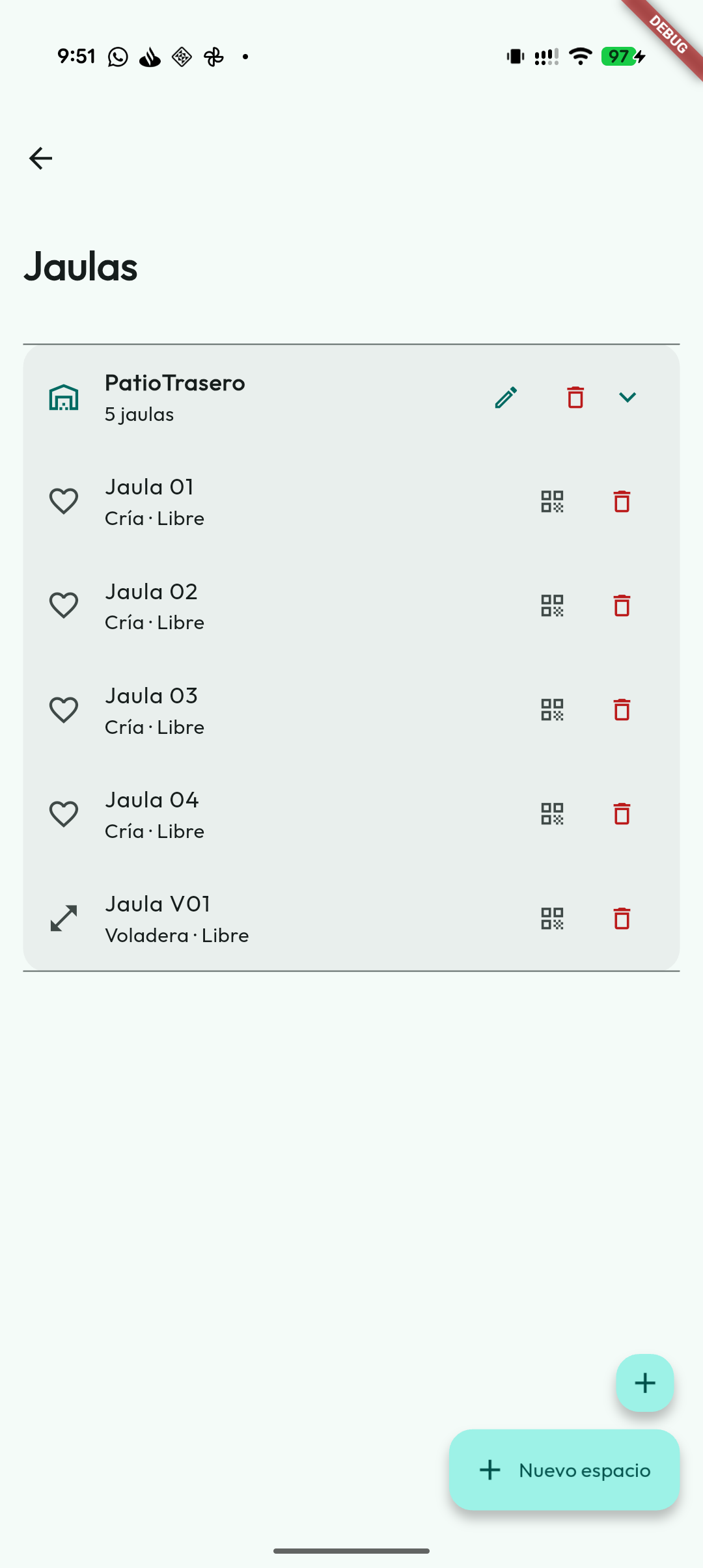
Assigning a bird to a cage
When creating or editing a bird, you will find the "Cage" field in the basic data section. Select the cage where it is housed and it is recorded automatically.
From the cages screen you can also see which birds are in each one: just tap the cage to see its content.
Assigning or removing birds and pairs
Each cage type has a different use:
- Individual: holds a single bird.
- Breeding: holds an active pair and can also contain loose birds before a pair is formed: the male and female you have just put together, or the birds that were in an aviary when you converted it. The detail view shows and counts both, so birds that do not belong to a pair yet are never hidden.
- Aviary: holds several birds.
In the cage list and in each aviary's detail you see how many males and females there are, and in the detail the birds are grouped by sex.
Each card in the list also shows which birds are inside: the sex, ring and species of each loose bird and both birds of the pair. Two lines fit; if there are more birds, «+N more». So in a divided breeding cage you can see which division holds the male and which the female before you form the pair.
In a breeding cage without a pair, the Add to cage button offers three ways: Assign pair (an active pair that has no cage yet), Assign bird (a loose bird, for example the female you are going to put with the male) or New Pair. When creating the pair, if you choose two birds from that cage, the app suggests leaving the pair in it.
From a cage's detail you can add compatible birds or pairs. When adding or moving a bird, the picker lists all birds in the aviary and allows compatible individual, breeding and aviary cages. Birds that already have a cage show their current location alongside and, if you choose one of them, the app asks you to confirm the move (with a warning if it belongs to an active pair). You can also take birds out of the cage and, in the same step, move them to another location or leave them as No Cage. The digits you type search the ring number, the breeder code and the name, not the year: «026» finds ring 026 rather than every bird from 2026. Tick Include year to search by year as well, or pick the year in its chips. The clear-filters button (the crossed-out funnel), to the right of the chips, resets the picker to how it was when you opened it.
When you put a bird in a cage in breeding use (a breeding-type cage, one labelled as breeding or, with no label, one with an active pair or a nest), the app checks whether there are related birds of the opposite sex inside and, if so, tells you which ones and how closely before moving it. A warning, not a block. It applies on every path: the bird's card, the cage chip in My Birds, the cage detail, adding a bird with a cage, weaning a chick and moving a pair. In aviaries labelled as moult, weaning, rest or quarantine it does not warn: siblings live together there on purpose.
In aviaries, the bird cards show species, mutations and transfer status where applicable, so you can review the group without opening each record.
When ending a breeding season or separating a pair, the relocation picker gives priority to the Available aviaries. If you need another destination, you can turn on Also show other cages to choose a compatible individual or breeding cage.
Feeding
With the Feeding module on, each cage's record shows Today in this cage: the plans given today to whatever is in it —its loose birds, the pair living in it and their chicks—, saying who it is for when it is not for everyone (“the female”, “3 chicks · 5–9 days”). Plan for this cage creates a plan already aimed at it. Since the cage QR opens its record, doing the round with your phone is just scan and look.
If you merge or split cages, their feeding plans move to the resulting cage or to all its divisions.
Cage status
Each cage shows whether it is Free or Occupied, so at a glance you know what you have available for the next season.
Birds that are transferred, deceased, donated or lost do not count as occupants: when you mark a bird with one of those statuses, the app takes it out of its cage and the location becomes free. A bird on loan is still present and keeps its location until the transfer is completed.
An active pair occupies its cage whatever the cage type, even when both of its birds now have another cage. The list says so (Active pair) and, when you open the cage, you see the pair with its number and can take it out of there or move it to another one with Remove from cage.
A cage can only be deleted when it is empty. If it is not, the warning says what occupies it: the pair —by its number— or how many birds.
If a cage has active birds or pairs, the app blocks its deletion to prevent losing locations. Conversions are more flexible: an active pair does block the reorganisation because it usually means breeding is in progress, but if there are only loose birds the app asks you where each one should go before converting.
Converting groups
The cages screen lets you convert compatible groups:
- From one or more Breeding cages to an Aviary:
C01becomesV01, and several free breeding cages with consecutive numbers become a range aviary (V01-03). - From a single Aviary to the breeding cage with the same number: with Convert to breeding,
V01becomesC01, in the same cell and with the same size. If you prefer two or more breeding cages with a divider (C01A,C01B), turn on Create with divisions. - From a range aviary to Breeding cages, one per number:
V01-02becomesC01andC02. - From two aviaries with consecutive numbers (V27 and V28) to a wider one (V27-28): with the “Merge aviaries” button in the cage list or from the layout editor. If both are placed in the layout they must be side by side; if only one is, the app takes you to the editor to place them.
- From a range aviary to smaller aviaries, without going through breeding cages: tap Split cage, leave Split into aviaries on and choose the Numbers per aviary. With 1,
V01-02becomesV01andV02; with 2,V01-06becomesV01-02,V03-04andV05-06. Each new aviary takes its share of the original's place in the layout; if there isn't a slot for each one, they go to Not placed and the app warns you first. It is also in the cage menu of the layout editor. If you turn Split into aviaries off, the aviary is split with dividers like any other cage (V01-02A,V01-02B). - From a group of divided aviaries (
V01A,V01B) to breeding cages, with the group's button: by default it keeps the divisions (C01A,C01B); if you turn Keep divisions off, the group becomes a singleC01in the same place. - And undo the last reorganisation, restoring the exact original cages.
Before converting, check the range and pay attention to the summary shown by the app. If there are loose birds in the cages involved, you can send them to one of the resulting cages, to another compatible location or leave them without a cage. If the cages are placed in the physical layout, the app tries to keep their position and the space they take up.
An example season: during the moult the males are together in V01-06; when they start fighting, Split into aviaries with one number per aviary leaves each one in its own (V01… V06). To form a pair, Split cage on V01 gives V01A and V01B, with the male and female seeing each other through the divider. When the pair is formed, the group's button with Keep divisions off turns it into C01. If you'd rather skip the divider, go from V01 to C01 directly with Convert to breeding.
Repeated numbering
If a space has two cages of the same type that claim the same number (for example V01-06 and V03-04), the space card shows Repeated numbering and says which ones they are. It may come from an earlier version of the app, which allowed it, from two devices that created cages at the same time while offline, or from a restored backup. The app does not decide for you which one is extra: empty the one that doesn't match reality (move its birds to the other) and delete it, or split or convert it. The warning disappears as soon as there are no more clashes.
QR codes of converted cages
During the season a cage can be converted, merged with another, split, or the operation undone. Printed QR codes stay useful:
- New QR codes carry a permanent identity: they follow the chain of merges and splits to the current living cage, even across several steps.
- Old code-based QR codes also resolve: if the exact code exists, that cage opens; if
C22was merged intoV21-22, the QR takes you to the current aviary with a gentle notice; and if there are several candidates — a cage split into divisions or the same code in two spaces — the app lets you choose, showing each cage's space.
The alias does not take part in this resolution: it serves to show convenient names, while the QR keeps traceability through the physical code.